3DSync
Homebrew for the Nintendo 3DS/2DS family that synchronises saves and files with cloud storage or a
server on your own network.
Bidirectional sync with Google Drive, Dropbox, an
SMB2/3 file server, FTP/FTPS and WebDAV.
Quick Start
- Open the configurator and follow the three steps. To change a file you made before, import it in the first step.
- Place the downloaded
3DSync.inion the SD card at/3ds/3DSync/3DSync.ini. - Install 3DSync, most easily through Universal-Updater.
- Launch 3DSync and press A to sync all configured paths, or Y to sync with debug output. START exits.
Installation
All three ways need a 3DS running custom firmware with the Homebrew Launcher or FBI; see 3ds.hacks.guide if yours does not.
Universal-Updater (recommended)
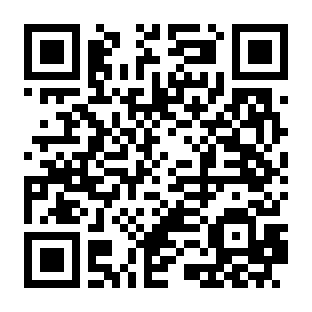
- In Universal-Updater, open Settings → Select a UniStore → +.
- Scan the QR code, or type the store URL:
https://3dsync.vllni.dev/unistore/3dsync.unistore - Select the 3DSync store, open the 3DSync entry and pick a download: 3DSync.cia installs it to the HOME Menu, 3DSync.3dsx puts it in the Homebrew Launcher.
New releases show up in the store by themselves, and the entry is flagged when an update is
available. Earlier versions stay listed as [v0.6.0] 3DSync.cia and so on, should you
need to go back.
FBI
Every release carries a QR code for its .cia. In FBI, choose
Remote Install → Scan QR Code and scan it.
By hand
Download from the latest release:
3DSync-<version>.cia— copy it to the SD card and install it with FBI.3DSync-<version>.3dsx— copy it to/3ds/3DSync/3DSync.3dsxand launch it from the Homebrew Launcher.
The .zip holds both, plus a .3ds for flashcarts.
Updating or reinstalling keeps your settings: 3DSync.ini, the sync manifest
and the debug logs live in /3ds/3DSync/ on the SD card, not inside the app.
Configuration
The INI file lives at /3ds/3DSync/3DSync.ini.
Dropbox
[Dropbox]
AppKey=<app key from configurator>
RefreshToken=<refresh token from configurator>
Path=                     ; optional folder inside the account
Configs with a bare Token= still work, but Dropbox access tokens expire after about
four hours — re-run the configurator to get a refresh token instead.
add_to_driveGoogle Drive
[GoogleDrive]
ClientId=<OAuth client ID>
ClientSecret=<OAuth client secret>
RefreshToken=<refresh token from configurator>
FolderId=<optional root folder ID>
FolderId restricts all Drive operations to one folder. Leave it out to use Drive root.
storageSMB file server (NAS, Windows share)
[SMB]
Server=192.168.1.10
Share=3ds
User=<username>
Password=<password>
Domain=                   ; optional, for a Windows domain
Path=                     ; optional folder inside the share
Speaks SMB2/SMB3, the dialects modern NAS boxes and Windows accept by default. SMB1 does not need to be re-enabled.
folder_sharedFTP / FTPS
[FTP]
Host=192.168.1.10
Port=                     ; optional, 21 (990 for TLS=implicit)
User=<username>
Password=<password>
Path=                     ; optional base directory
TLS=try                   ; none | try | require | implicit
Mode=passive              ; passive | active
TLS=try encrypts the session when the server offers AUTH TLS and falls back
to plaintext otherwise — also for an anonymous login the server refuses over TLS (stock vsftpd
does), but never for a named user, whose password would then travel unencrypted. SFTP is not
supported — the 3DS build of libcurl has no libssh2.
cloud_queueWebDAV
[WebDAV]
Url=https://nas.example/remote.php/dav/files/username/
User=<username>
Password=<app password>
Works with Nextcloud/ownCloud and any NAS with WebDAV enabled. Prefer an app password over your account password.
Configure as many remotes as you like, several of one kind too: [SMB:backup] is a
second SMB remote, labelled backup. A save changed in one place reaches all the others in the
same sync. Role=backup makes a remote only receive copies, Role=source makes it
only send them, and Only=saves, gba
limits it to those folders. The configurator writes all of them into one file.
On startup 3DSync checks the file. If a remote is missing a setting or a login, a section has a
misspelled type, Role= or Only= make no sense, or a [Filter] line
names no configured path, it lists every problem with
what to do, before the main menu. Press A to continue anyway or START
to exit and fix the file.
Sync Paths
Four INI sections control which local paths to sync and how:
| Section | Direction | Subdirs |
|---|---|---|
[Paths] |
Bidirectional | Yes |
[ShallowPaths] |
Bidirectional | No |
[UploadPaths] |
Upload only | Yes |
[UploadShallowPaths] |
Upload only | No |
Each entry has the form RemoteName=LocalPath:
[Paths]
Checkpoint=/3ds/Checkpoint/saves
roms/nds/saves=/roms/nds/saves

[UploadPaths]
Backup=/3ds/MyGame- RemoteName is the folder on the remote (use
/for nesting, e.g.roms/nds). It is also the nameOnly=refers to. - LocalPath is the absolute path on the SD card.
- Bidirectional entries use a manifest (
/3ds/3DSync/manifest.json) to detect which side changed. - Upload-only entries push the local file to every remote taking part and never download. A
Role=sourceremote is left out of them: 3DSync never writes to it.
File type filter
By default every file under a sync path is synced. To sync only certain file types, list their
extensions under [Filter]: Extensions= for every path, or a path's name for
that path alone:
[Filter]
Extensions=sav, bin, dat   ; every path without a line of its own
roms/nds/saves=dsv         ; only .dsv in this one
screenshots=* ; every file in this one- Separate extensions with commas, spaces or both —
sav,bin,sav, binandsav, bin,srmall work (not;, which starts a comment).sav,.savand*.savall mean the same, and case does not matter. - Leave
Extensions=empty, leave it out, or write*to sync all files. - A path's own line replaces
Extensions=for that path rather than adding to it. A line naming a path that is not configured is reported when 3DSync starts. - Filters apply in both directions: a filtered-out file is neither uploaded nor downloaded.
- The main menu on the 3DS shows the filter next to FILES (per path once a path has its own), and a sync prints it under each path it applies to.
Bidirectional Sync Logic
Bidirectional paths ([Paths] / [ShallowPaths]) compare each file's local
modification time and size, and each remote's change tag, against the manifest from the last sync.
| Remote | Change tag |
|---|---|
| Google Drive | MD5 checksum from the Drive API |
| Dropbox | content_hash (SHA-256 over per-4 MiB-block SHA-256) |
| WebDAV | ETag, falling back to size + Last-Modified |
| SMB | size + modification time |
| FTP | size + MDTM |
With several remotes configured, every file is decided once with all of them in view. The side that changed wins and its version is copied to all the others in the same run, whichever order the remotes are in. A remote that was unreachable while the file changed is simply brought up to date the next time.
| Local changed? | Remote changed? | Action |
|---|---|---|
| No | No | Skip (up to date) |
| Yes | No | Upload local → remote, update manifest |
| No | Yes | Download from remote → local, update manifest |
| Yes | Yes | Conflict — the 3DS lists every side that changed. A keeps the highlighted one (tap a version, or move with R or D-pad ↑/↓), X skips the file, L applies the answer to every remaining conflict, START stops. The version kept is copied to the others. |
| Local missing | Remote exists | Download from remote |
| Local exists | Remote missing | Upload to remote |
| Both missing | — | Remove stale manifest entry |
"Changed" means the local mtime/size, or the remote tag, differs from the last manifest entry. On the first sync of a file, a file on one side only is copied to the others; a file already on both is a conflict, unless Google Drive or Dropbox can prove it holds the same bytes as the 3DS. They can check contents on the 3DS, so they also catch a save whose modification time never moves; on SMB, FTP and WebDAV an unchanged time and size is taken as unchanged.
Manifest file
/3ds/3DSync/manifest.json is stored only on the SD card. It records the 3DS's copy and each
remote's tag per file. Deleting it makes the next sync a first sync again: every file that exists both on
the 3DS and on a remote becomes a conflict, unless Drive or Dropbox can prove the two are identical.
{
  "drive|/3ds/Checkpoint/saves/TitleA/001.sav": {"mtime": 1716905520, "size": 512, "tag": "abc123", "id": "driveFileId"},
  "local|/3ds/Checkpoint/saves/TitleA/001.sav": {"mtime": 1716905520, "size": 512, "tag": "", "id": "", "gen": 1}
}add_to_driveGoogle Drive App Setup
- Go to Google Cloud Console.
- Create a project and enable the Google Drive API.
- Create an OAuth 2.0 Web application credential (Client ID + Client Secret).
- Add the redirect URI:
https://3dsync.vllni.dev/configurator.html - Use the configurator to authenticate; it performs PKCE and stores the refresh token.